Astro を学んでみる(4)
 kenp
kenp本記事は、書籍「Astro フロントエンド開発の教科書」によるAstroの勉強、4回目です。
記事内のコードは書籍のものではなく、独自に作成しています。
第3章 コンポーネント間連携
3.1 コンポーネントの埋め込み
まずは普通にコンポーネントを作成して表示します。
---
---

<section class="sec1">
    <p class="h4">セクション見出し</p>
    <div>
        <p>
        セクションのコンテンツ
        </p>
    </div>
</section>

<style>
    .sec1 {
        border: 1px dotted #000;
        border-radius: 10px;
        padding: 5px;
    }
    .h4 {
        font-weight: bold;
        font-size: 1.2em;
    }
</style>
ページに対して作成したコンポーネントを埋め込みます。
---
import OneSection from '../components/OneSection.astro';
---

<!doctype html>
<html lang="en">
	<head>
		<meta charset="UTF-8" />
		<meta name="viewport" content="width=device-width" />
		<link rel="icon" type="image/svg+xml" href="/favicon.svg" />
		<meta name="generator" content={Astro.generator} />
		<title>Astro Component Test</title>
	</head>
	<body>
        <p>一つ目</p>
		<OneSection />
        <p>二つ目</p>
		<OneSection />
	</body>
</html>

<style>
	html,
	body {
		margin: 0;
		width: 100%;
		height: 100%;
	}
	body {
		margin: 100px;
    	width: 600px;
	    height: 400px;
	}
</style>
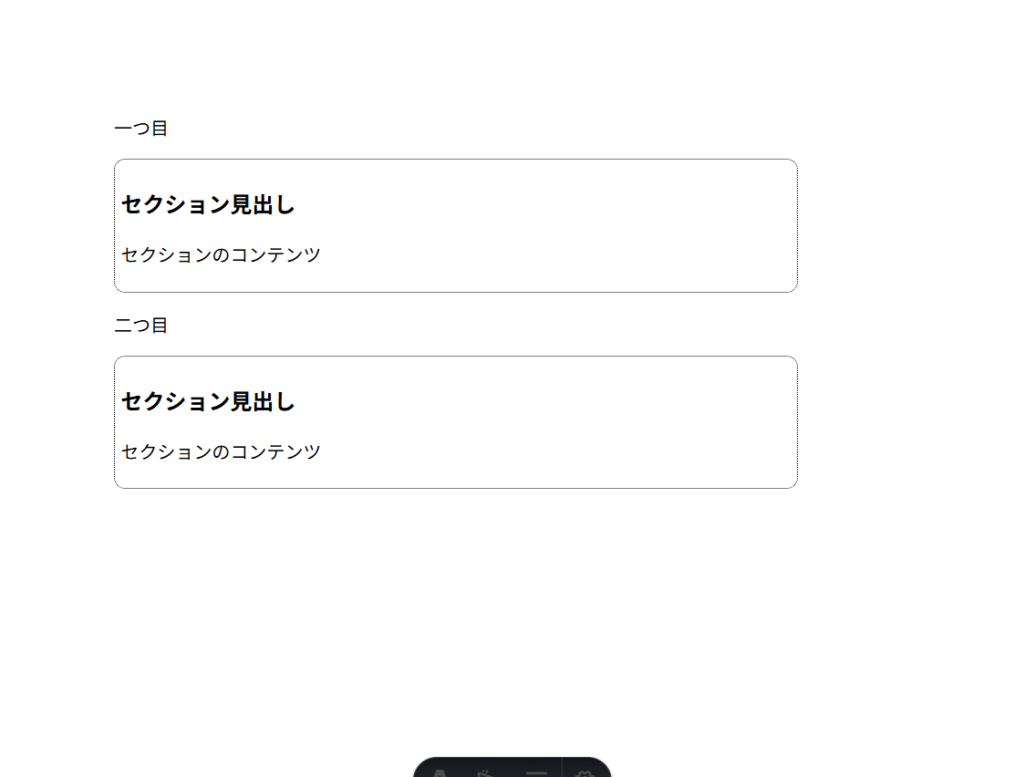
出来上がり
3.2 コンポーネントのProps
次に、propsを利用して、親ページからコンポーネントに値を渡してみます。
まずは渡される側のコンポーネント
---
const {title, content} = Astro.props;
---

<section class="sec1">
    <p class="h4">{title}</p>
    <div>
        <p>
        {content}
        </p>
    </div>
</section>

<style>
    .sec1 {
        border: 1px dotted #000;
        border-radius: 10px;
        padding: 5px;
    }
    .h4 {
        font-weight: bold;
        font-size: 1.2em;
    }
</style>
そして、渡す側のページ
---
import OneSection from '../components/OneSection.astro';
---

<!doctype html>
<html lang="en">
	<head>
		<meta charset="UTF-8" />
		<meta name="viewport" content="width=device-width" />
		<link rel="icon" type="image/svg+xml" href="/favicon.svg" />
		<meta name="generator" content={Astro.generator} />
		<title>Astro Component Test</title>
	</head>
	<body>
        <p>一つ目</p>
		<OneSection title="タイトル" content="本文" />
        <p>二つ目</p>
		<OneSection title="タイトル2" content="本文2"  />
	</body>
</html>

<style>
	html,
	body {
		margin: 0;
		width: 100%;
		height: 100%;
	}
	body {
		margin: 100px;
    	width: 600px;
	    height: 400px;
	}
</style>
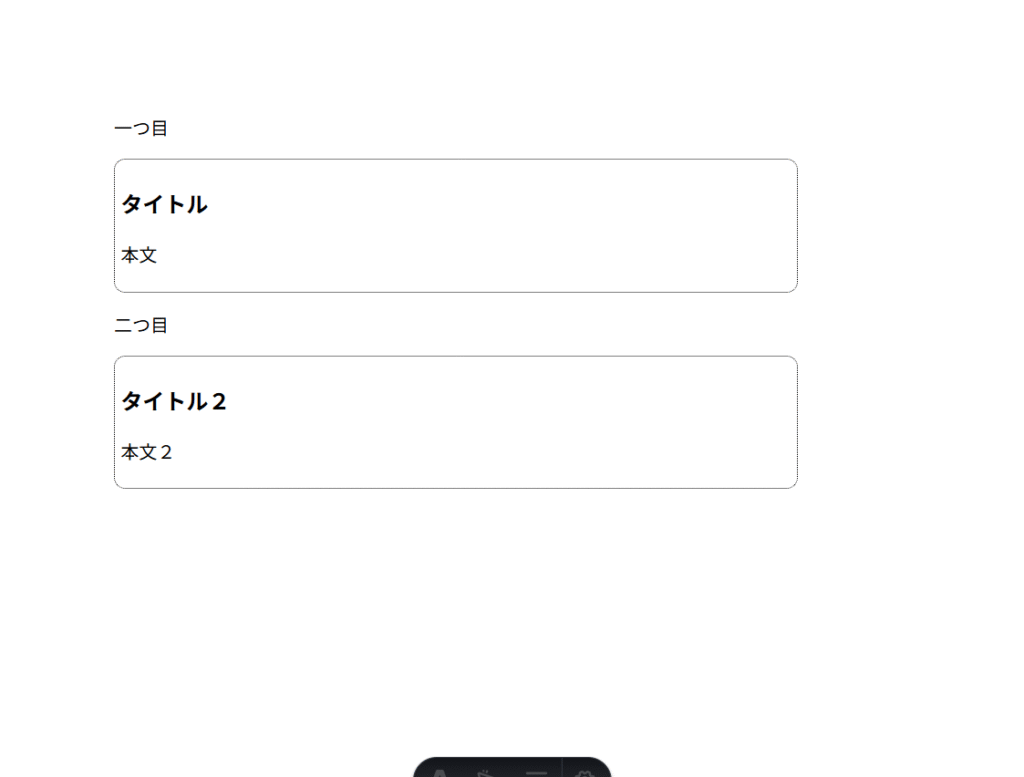
出来上がり
次にinterfaceを使って型を定義する
---

interface Props {
    title: string
    content: string
    num?: number
}

const {title, content, num = 1} = Astro.props;
---

<section class="sec1">
    <p class="h4">{title}</p>
    <div>
        <p>
        {content}
        </p>
        <p>{num}</p>
    </div>
</section>

<style>
    .sec1 {
        border: 1px dotted #000;
        border-radius: 10px;
        padding: 5px;
    }
    .h4 {
        font-weight: bold;
        font-size: 1.2em;
    }
</style>
---
import OneSection from '../components/OneSection.astro';
interface post {
title: string;
content: string;
num?: number;
}
const post1: post = {
title: "タイトル1",
content: "本文1"
}
const post2: post = {
title: "タイトル2",
content: "本文2",
num: 2
}
const posts: post[] = [post1, post2];
---
<!doctype html>
<html lang="en">
<head>
<meta charset="UTF-8" />
<meta name="viewport" content="width=device-width" />
<link rel="icon" type="image/svg+xml" href="/favicon.svg" />
<meta name="generator" content={Astro.generator} />
<title>Astro Component Test</title>
</head>
<body>
{
posts.map(
(item, i) => (
<p>{i + 1}つ目</p>
<OneSection title={item.title} content={item.content} num={item.num} />
)
)
}
</body>
</html>
<style>
html,
body {
margin: 0;
width: 100%;
height: 100%;
}
body {
margin: 100px;
width: 600px;
height: 400px;
}
</style>
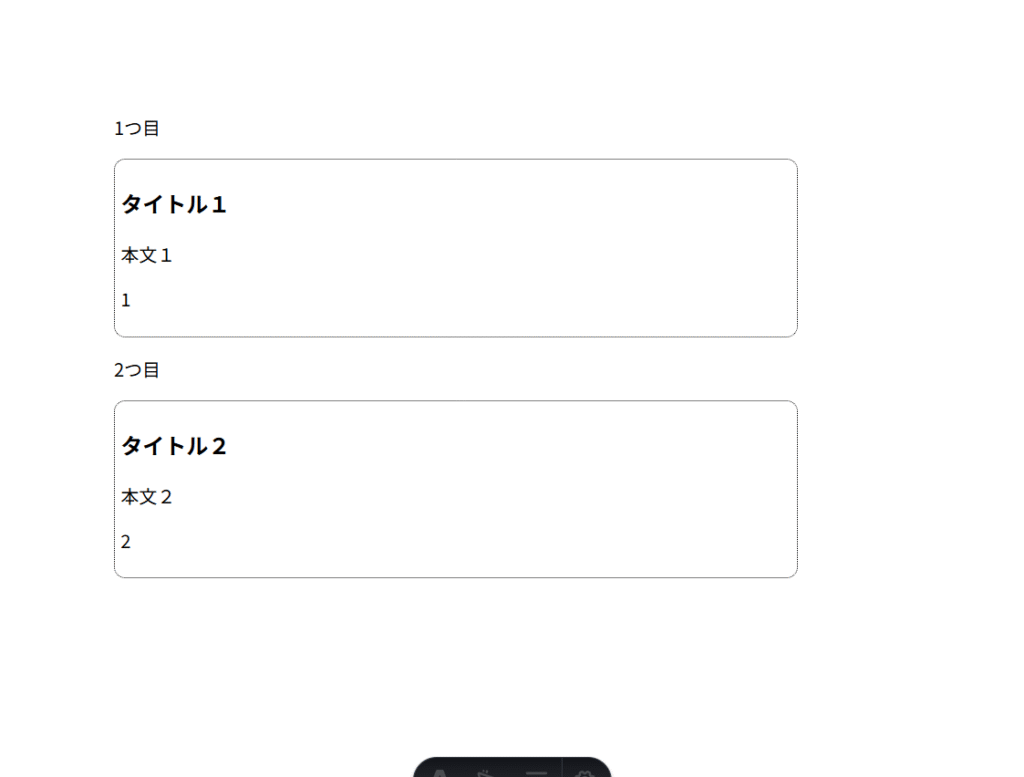
結果
3.3 子コンポーネントをカスタマイズするSlot
Slotを使ってコンポーネントにHTMLを渡してみます
---

interface Props {
    title: string
    content: string
    num?: number
}

const {title, content, num = 1} = Astro.props;
---

<section class="sec1">
    <p class="h4">{title}</p>
    <div>
        <p>
        {content}
        </p>
        <p>{num}</p>
        <slot name="category">
            <p>カテゴリーはありません</p>
        </slot>
        <slot name="tag">
            <p>タグはありません</p>
        </slot>
    </div>
</section>

<style>
    .sec1 {
        border: 1px dotted #000;
        border-radius: 10px;
        padding: 5px;
    }
    .h4 {
        font-weight: bold;
        font-size: 1.2em;
    }
</style>
---
import OneSection from '../components/OneSection.astro';
interface post {
title: string;
content: string;
num?: number;
category: string;
tag: string[];
}
const post1: post = {
title: "タイトル1",
content: "本文1",
category: "カテゴリー1",
tag: ["tag1", "tag2"]
}
const post2: post = {
title: "タイトル2",
content: "本文2",
num: 2,
category: "カテゴリー2",
tag: [""]
}
const posts: post[] = [post1, post2];
---
<!doctype html>
<html lang="en">
<head>
<meta charset="UTF-8" />
<meta name="viewport" content="width=device-width" />
<link rel="icon" type="image/svg+xml" href="/favicon.svg" />
<meta name="generator" content={Astro.generator} />
<title>Astro Component Test</title>
</head>
<body>
{
posts.map(
(item, i) => (
<p>{i + 1}つ目</p>
<OneSection title={item.title} content={item.content} num={item.num} />
<p slot="category">{item.category}</p>
<Fragment slot="tag">
<ul>
{
item.tag.map(
(item2) => (
<li>{item2}</li>
)
)
}
</ul>
</Fragment>
)
)
}
</body>
</html>
<style>
html,
body {
margin: 0;
width: 100%;
height: 100%;
}
body {
margin: 100px;
width: 600px;
height: 400px;
}
</style>
結果は
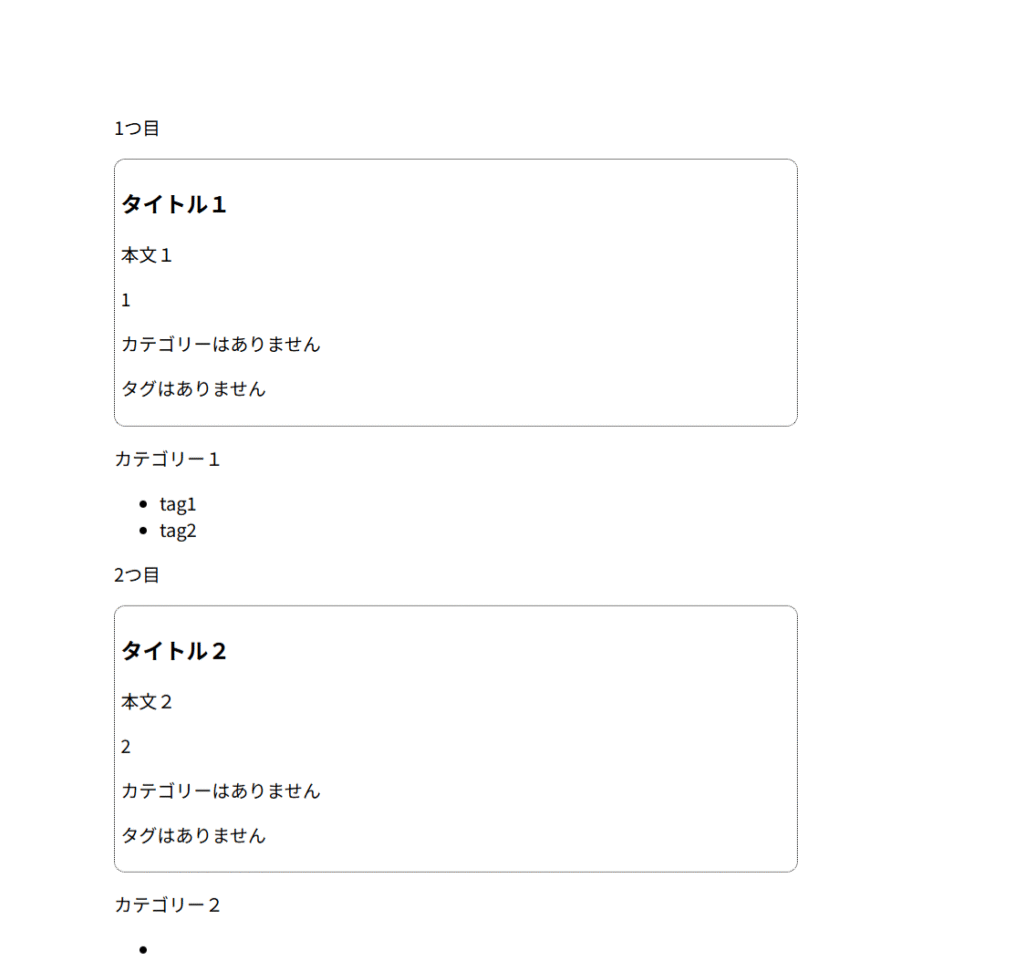
想定通りではないですね。SlotでHTMLを渡せておらず、親ページ側でそのまま描画されているようです。
なお、フォールバックコンテンツはうまく機能していました。
コードを良く確認すると、コンポーネントタグの書き方が違っていました。Slotを使う場合は閉じタグを利用します。
                    <OneSection title={item.title} content={item.content} num={item.num} >
                    <p slot="category">{item.category}</p>
                    <Fragment slot="tag">
                        <ul>
                            {
                                item.tag.map(
                                    (item2) => (
                                        <li>{item2}</li>
                                    )
                                )
                            }
                        </ul>
                    </Fragment>
                    </OneSection>
結果
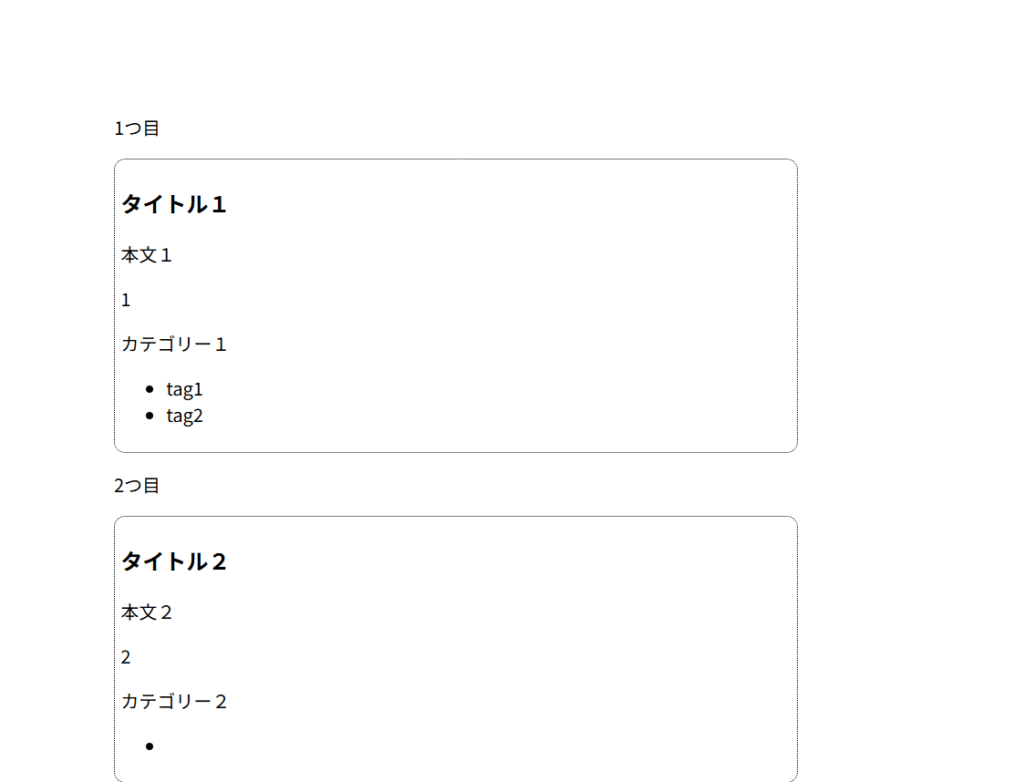
2つ目にはタグがないので、タグが無い場合はデフォルトのHTML表示をさせたいと思います。
---
import OneSection from '../components/OneSection.astro';

interface post {
    title: string;
    content: string;
    num?: number;
    category: string;
    tag: string[];
}

const post1: post = {
    title: "タイトル1",
    content: "本文1",
    category: "カテゴリー1",
    tag: ["tag1", "tag2"]
}
const post2: post = {
    title: "タイトル2",
    content: "本文2",
    num: 2,
    category: "カテゴリー2",
    tag: []
}

const posts: post[] = [post1, post2];
---

<!doctype html>
<html lang="en">
	<head>
		<meta charset="UTF-8" />
		<meta name="viewport" content="width=device-width" />
		<link rel="icon" type="image/svg+xml" href="/favicon.svg" />
		<meta name="generator" content={Astro.generator} />
		<title>Astro Component Test</title>
	</head>
	<body>
        {
            posts.map(
                (item, i) => (
                    <p>{i + 1}つ目</p>
                    <OneSection title={item.title} content={item.content} num={item.num} >
                    <p slot="category">{item.category}</p>
                    {
                        item.tag.length > 0
                        &&
                        <Fragment slot="tag">
                            <ul>
                                {
                                    item.tag.map(
                                        (item2) => (
                                            <li>{item2}</li>
                                        )
                                    )
                                }
                            </ul>
                        </Fragment>
                    }
                    </OneSection>
                )
            )
        }
	</body>
</html>

<style>
	html,
	body {
		margin: 0;
		width: 100%;
		height: 100%;
	}
	body {
		margin: 100px;
    	width: 600px;
	    height: 400px;
	}
</style>
結果は
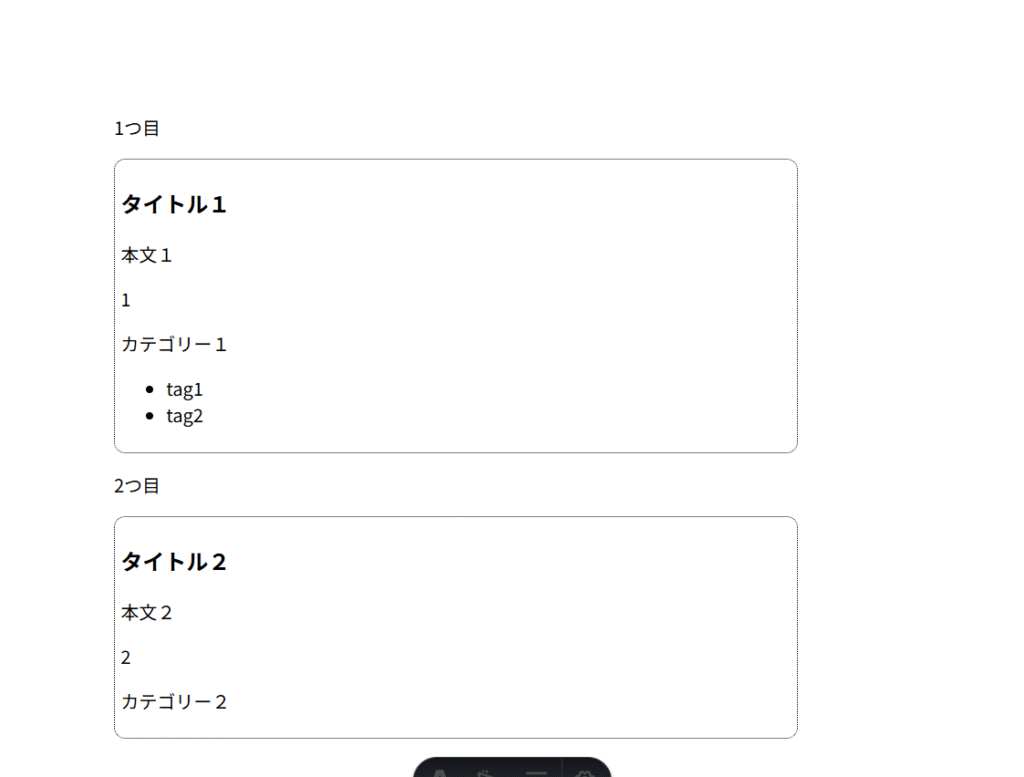
2つ目のタグについて、フォールバックコンテンツが機能していません。
とりあえず今日のところは良しとしますか。。
\ 最新情報をチェック /